Key takeaways
- Five trackball mice for home offices compared, from the Logitech ERGO M575S to the Kensington Expert TB800, with notes on thumb and finger balls and tilt.
A trackball trades arm movement for finger movement. The device stays planted on the desk while a ball under your thumb or fingertips drives the cursor, which means no mouse pad, no running out of desk at the screen edge, and far less shoulder and forearm travel across an eight-hour day. For home office workers with crowded desks or aching wrists, that trade is often the difference between discomfort and forgetting the mouse exists.
The five models below cover both schools. Logitech’s thumb-operated M575S and MX Ergo S keep the hand in a handshake-style grip, while the finger-operated Kensington Orbit, Kensington Expert TB800, and ELECOM DEFT PRO spread the work across two or three fingers. All five are wireless, all suit stationary desk work, and each has a clear reason to exist.
As an Amazon Associate, we earn from qualifying purchases.
Quick Answer
Most home office workers should start with the Logitech ERGO M575S: an easy thumb ball, Bluetooth and USB receiver connections, and quiet clicks. The Logitech MX Ergo S adds an adjustable tilt and programmable buttons. Finger-ball fans get the scroll-ring Kensington Orbit, the large-ball Expert TB800 for precision work, and the button-rich ELECOM DEFT PRO with wired, wireless, and Bluetooth connections.
How to Choose
The first decision is thumb ball or finger ball. A thumb trackball keeps your hand in a familiar mouse shape and moves only the thumb, which makes the learning curve gentle; most people are productive within a day. A finger trackball centers a larger ball under your index and middle fingers, which many users find more precise for detailed work and easier on a sore thumb, but it takes longer to learn and the hand rests flatter.
Tilt matters for wrist comfort. A sculpted thumb ball already turns the hand toward a handshake position, and the MX Ergo S goes further with a hinge that adjusts the angle, letting you settle where your forearm feels neutral. Finger balls sit flatter, so people sensitive to pronation should weigh that, though the large-ball designs spread effort across more fingers.
Connections decide daily friction. Bluetooth frees a USB port and suits laptops, a USB receiver gives the most forgiving plug-and-play link and easy switching to a second machine, and a wired fallback, offered by the DEFT PRO, removes battery concerns entirely. Multi-device workers should look for models that pair with two or three computers and switch with a button.
Finally, think about buttons and maintenance. Programmable buttons genuinely help in spreadsheets, editing, and CAD, where back, forward, and precision modes save constant keyboard trips. Every trackball also needs its ball popped out and the sensors wiped every few weeks; models with smooth bearings and easy ball removal make that chore trivial rather than annoying.
Logitech ERGO M575S Wireless Trackball Mouse, Graphite with Blue Ball

The M575S is the updated version of the trackball that converted a generation of office workers. The sculpted shell keeps your hand still and your thumb on the blue ball, the clicks are quiet enough for shared rooms and calls, and it connects by Bluetooth or the included encrypted Logi Bolt USB receiver, so it can live with a laptop or a desktop without cable clutter.
Battery life is a genuine strength, rated for well over a year on a single AA, which suits a device you want to forget about. The shape is right-handed and sized for small to medium hands, and the tracking handles multi-monitor desktops comfortably once sensitivity is set. For a first trackball at a home office desk, this is the low-risk starting point against which the rest of the list is measured.
Specs
| Detail | Value |
|---|---|
| Brand | Logitech |
| Model | 910-007027 |
| Ball | Thumb-operated |
| Connection | Bluetooth and Logi Bolt USB receiver |
| Battery | AA, long-life |
| Clicks | Quiet click buttons |
Logitech MX Ergo S Advanced Wireless Trackball Mouse, Graphite

The MX Ergo S is the premium thumb ball, and its signature feature is the magnetic hinge that adjusts the tilt angle up to twenty degrees, so the hand can rest closer to a natural handshake posture. Six programmable buttons, a precision mode for slow detailed movement, and Logitech’s Options software support make it the productivity pick for people who live in spreadsheets, timelines, and design tools.
It charges over USB-C rather than using disposable cells, connects by Bluetooth or its encrypted USB receiver, and its clicks are notably quiet. The sculpted body suits medium to larger hands, and the build feels a step above the M575S in materials and glide. Choose it over the M575S if wrist angle is your main complaint or if you will actually program the extra buttons; otherwise the simpler model covers most desks.
Specs
| Detail | Value |
|---|---|
| Brand | Logitech |
| Model | 910-007259 |
| Ball | Thumb-operated |
| Tilt | Adjustable, up to 20 degrees |
| Buttons | 6 programmable buttons |
| Connection | Bluetooth and encrypted USB dongle, USB-C rechargeable |
Kensington Orbit Wireless Trackball Mouse with Scroll Ring (K72352US)
The Orbit takes the finger-ball route in its friendliest form. The centered ball is worked by your fingertips from either hand, since the body is fully ambidextrous, and the ring around the ball scrolls pages with a fingertip drag instead of a wheel. That scroll ring is the feature owners praise most: long documents and spreadsheets become a smooth, quiet glide.
It connects through a 2.4 GHz wireless USB receiver with a simple plug-and-play setup, and the compact footprint suits small desks where a wide mouse would crowd the keyboard. Two buttons keep things simple, which limits shortcuts but also limits the learning curve. Left-handed home office workers, who are largely ignored by thumb-ball designs, should look here first.
Specs
| Detail | Value |
|---|---|
| Brand | Kensington |
| Model | K72352US |
| Ball | Finger-operated, centered |
| Scroll | Touch scroll ring |
| Connection | 2.4 GHz wireless USB receiver |
| Design | Ambidextrous |
Kensington Expert Mouse TB800 EQ Wireless Trackball, Red Ball (K72458WW)
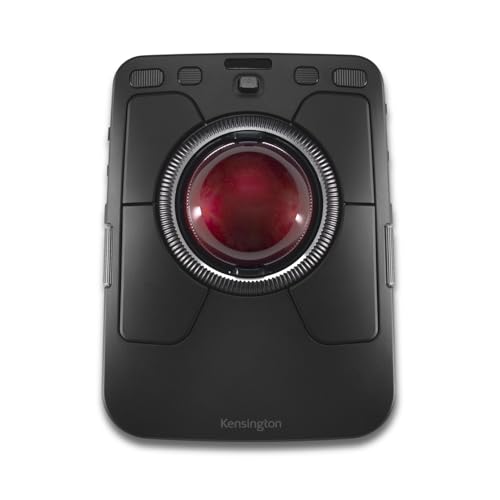
The Expert line is Kensington’s professional finger-ball family, and the TB800 EQ modernizes it with dual Bluetooth and 2.4 GHz connections, a rechargeable battery, and customizable keys set through Kensington’s software. Side scroll controls sit alongside the large red ball, so both cursor movement and scrolling stay under the fingers without reaching for a wheel.
A big ball is the point of this design: small finger movements produce fine, controlled cursor steps, which is why Expert models are fixtures in editing suites and CAD workstations. The broad, low body supports the whole hand during long sessions. It is the largest footprint in this roundup and the most specialized, rewarding users who do precision pointer work for hours and want every control without moving their hand.
Specs
| Detail | Value |
|---|---|
| Brand | Kensington |
| Model | K72458WW |
| Ball | Large finger-operated, red |
| Connection | Bluetooth and 2.4 GHz wireless |
| Battery | Rechargeable |
| Controls | Customizable keys, side scrolls |
ELECOM DEFT PRO Trackball Mouse (M-DPT1MRXBK)

The DEFT PRO is the enthusiast’s finger ball from Japan’s ELECOM, and its headline is flexibility: it connects by USB cable, 2.4 GHz wireless, or Bluetooth, so one device can serve a work laptop, a personal machine, and a wired fallback without re-pairing rituals. Eight buttons, including a tilt scroll wheel, give shortcut-heavy users plenty to program.
The red ball is finger-operated and known for smooth tracking once the bearings settle in, and the sculpted shell supports the index and middle fingers for detailed work. ELECOM’s software is more utilitarian than Logitech’s, and the design language is functional rather than minimal, but for multi-computer home offices that want one trackball to do everything, the DEFT PRO is the most versatile device here.
Specs
| Detail | Value |
|---|---|
| Brand | ELECOM |
| Model | M-DPT1MRXBK |
| Ball | Finger-operated, red |
| Connection | Wired USB, 2.4 GHz wireless, Bluetooth |
| Buttons | 8-button function with tilt wheel |
| Design | Ergonomic, right-handed |
Who Should Skip It
Skip trackballs if your work is fast-twitch gaming or any task built on rapid whole-arm mouse flicks, because a ball rewards control, not speed of that kind. Also skip them if you are unwilling to spend a week adapting; the first days feel clumsy, and people who abandon the device on day two conclude wrongly that it does not work. Thumb-ball models are also wrong for left-handed users, who should start with the ambidextrous Orbit instead.
FAQ
How long does it take to get used to a trackball?
Most people handle email and documents comfortably within two or three days and stop thinking about the device after about two weeks. Precision tasks take the longest to relearn. Lowering pointer speed at first, then raising it as your fingers learn, makes the transition much smoother.
Are trackballs better for wrist pain?
They remove the repeated forearm and shoulder movement of sliding a mouse, which is the motion many desk workers find aggravating. A tilted thumb ball also keeps the wrist closer to a neutral handshake angle. A trackball is not a medical treatment, but for mouse-related strain it changes exactly the movements that cause trouble.
Thumb ball or finger ball for spreadsheets?
Either works, but for different reasons. A thumb ball like the M575S feels familiar immediately and handles tab-switching and scrolling all day. A large finger ball like the Expert TB800 gives finer control when selecting small cells and ranges. Precision mode buttons, found on the MX Ergo S, help in both cases.
How do I maintain a trackball?
Pop the ball out every few weeks, wipe the ball with a soft cloth, and clear dust from the sensor points inside the socket with a dry swab. Skin oil and dust are the main causes of a scratchy, sticky feel, and thirty seconds of cleaning restores the glide.
Final Verdict
Start with the Logitech ERGO M575S for the easiest transition, or the MX Ergo S if wrist tilt and programmable buttons matter. Choose the Kensington Orbit for an ambidextrous finger ball with a brilliant scroll ring, the Expert TB800 for large-ball precision with modern connections, and the ELECOM DEFT PRO when one device must connect to everything you own.